
TABLE OF CONTENTS
- Overview
- BOX Status Reference
- 1. Navigate and Filter the Carton List
- 2. View BOX (Carton) Details
- 3. Automatic Carton Closure (Auto-Close)
- 4. Close a BOX (Carton) Manually
- 5. Reopen a BOX (Carton) - (Admin Only)
- 6. Ship a BOX (Carton)
- 7. RMA Cartons
Overview
The Box (Carton Management) tab allows Admin and Packing operators to view, close, reopen, and ship cartons that are created during the Packing process. Each carton holds a fixed number of products and moves through three statuses: Open → Closed → Shipped.
Note: Cartons are NOT created manually in this tab.
A carton is created automatically in the database the first time a serial is scanned into a new Carton ID at the Packing station. The operator must type or scan the Carton ID into the Box/Carton ID field before scanning the serial number.
BOX Status Reference
Status | Description | Available Actions |
Open | Carton is accepting serials at the Packing station | Close, View |
Closed | Carton is sealed, ready to be shipped | Ship, Reopen (Admin only), View |
Shipped | Carton has been dispatched | View only |
1. Navigate and Filter the Carton List
- Select a Project from the project dropdown at the top of the page.
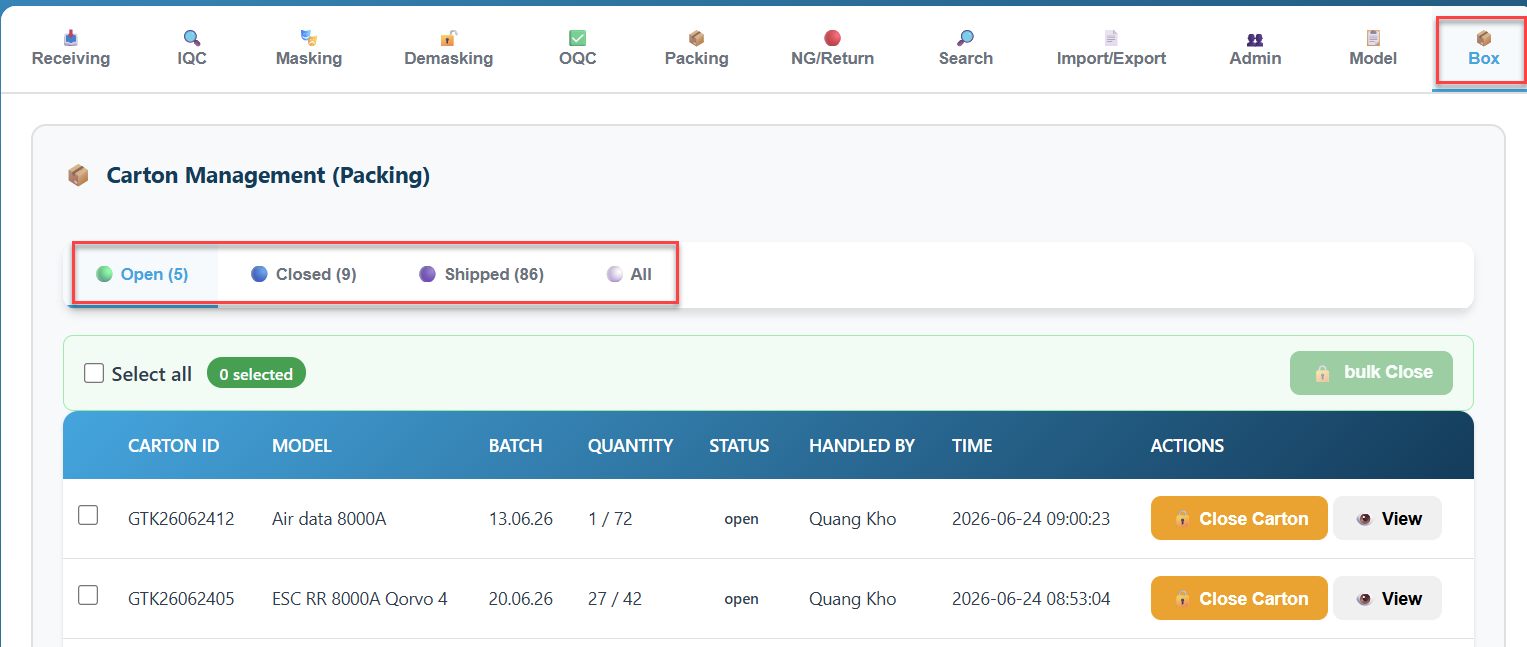
- Click the Box tab in the navigation bar.
- Use the four tab buttons to filter by status:
- Open — cartons currently being filled at the Packing station
- Closed — sealed cartons awaiting shipment
- Shipped — cartons that have been dispatched
- All — all cartons regardless of status
The number in parentheses next to each tab label shows how many cartons are in that state.
2. View BOX (Carton) Details
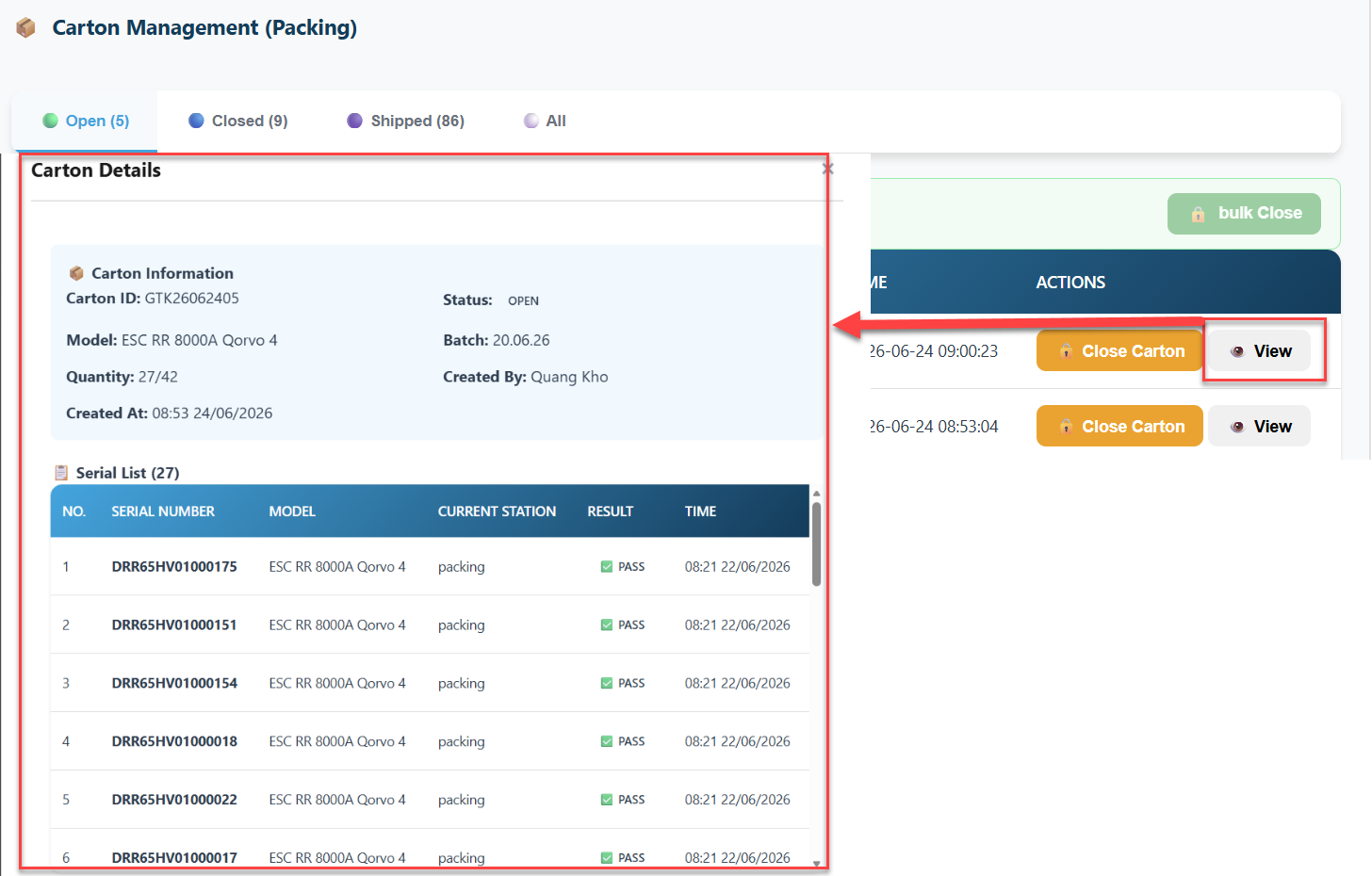
Click the View button on any row to see all serials packed inside that carton.
- Locate the carton in the list.
- Click ? View in the Actions column.
- A modal opens showing:
- Carton ID, model, batch, current quantity / max quantity, status
- Created by, Closed by, Shipped by (with timestamps)
- Full table of serial numbers packed inside the carton
3. Automatic Carton Closure (Auto-Close)
A carton is closed automatically when it reaches its maximum capacity.
- The maximum quantity per carton is defined in the product model configuration (Model Management tab, Max Qty/Box field).
- When the last available slot is filled at the Packing station, the system immediately sets the carton status to Closed.
- A warning notification appears: "Carton [ID] is full — Auto-closed! Please scan a new Carton."
- The Box/Carton ID field at the Packing station is cleared automatically so the operator can enter a new Carton ID.
4. Close a BOX (Carton) Manually
A carton can also be closed manually before it is full, for example at end-of-shift or when changing batches.
4.1 Close a Single BOX (Carton)
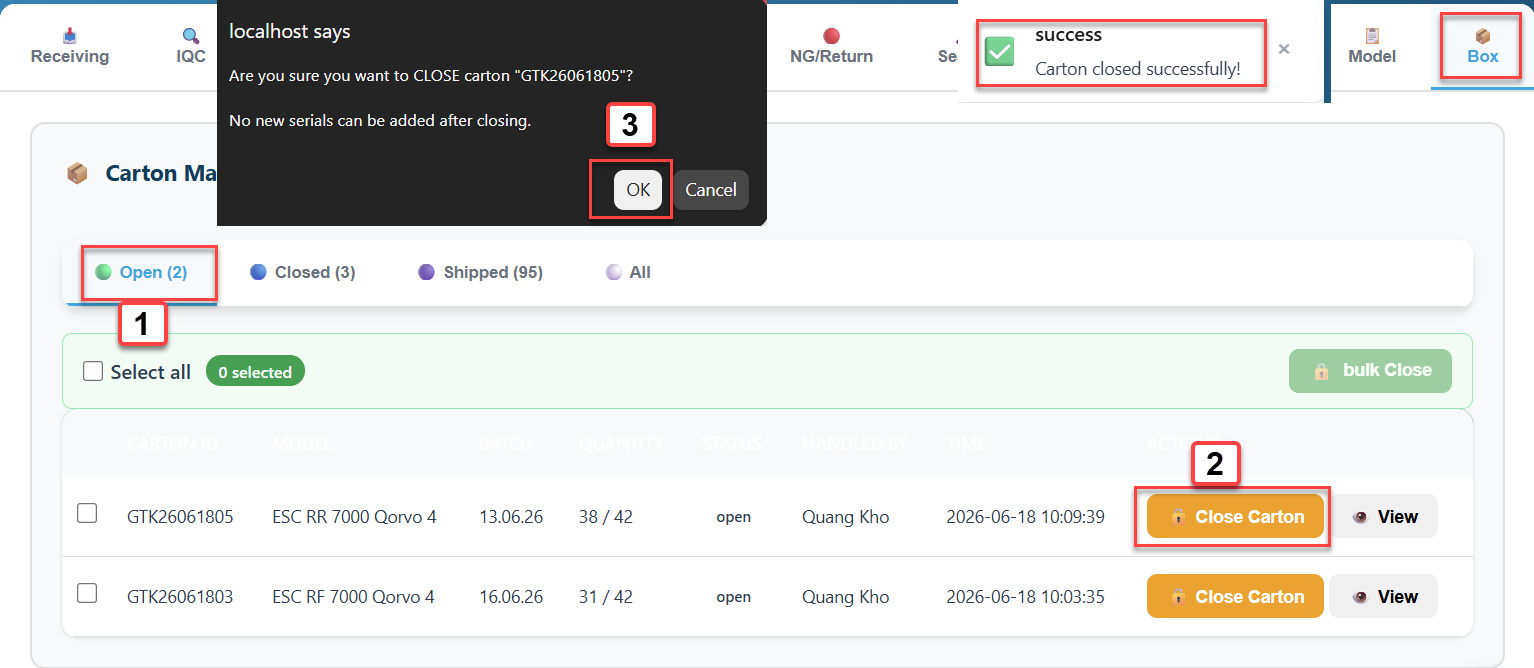
- Go to the Open tab.
- Find the carton to close and click ? Close Carton.
- A confirmation dialog appears. Confirm to proceed.
- The carton status changes to Closed and moves to the Closed tab.
Note: A carton must contain at least one serial to be closed. An empty carton cannot be closed.
Once closed, no new serials can be added to it.
4.2 Bulk Close Multiple BOXes (Cartons)
To close several open cartons at once:
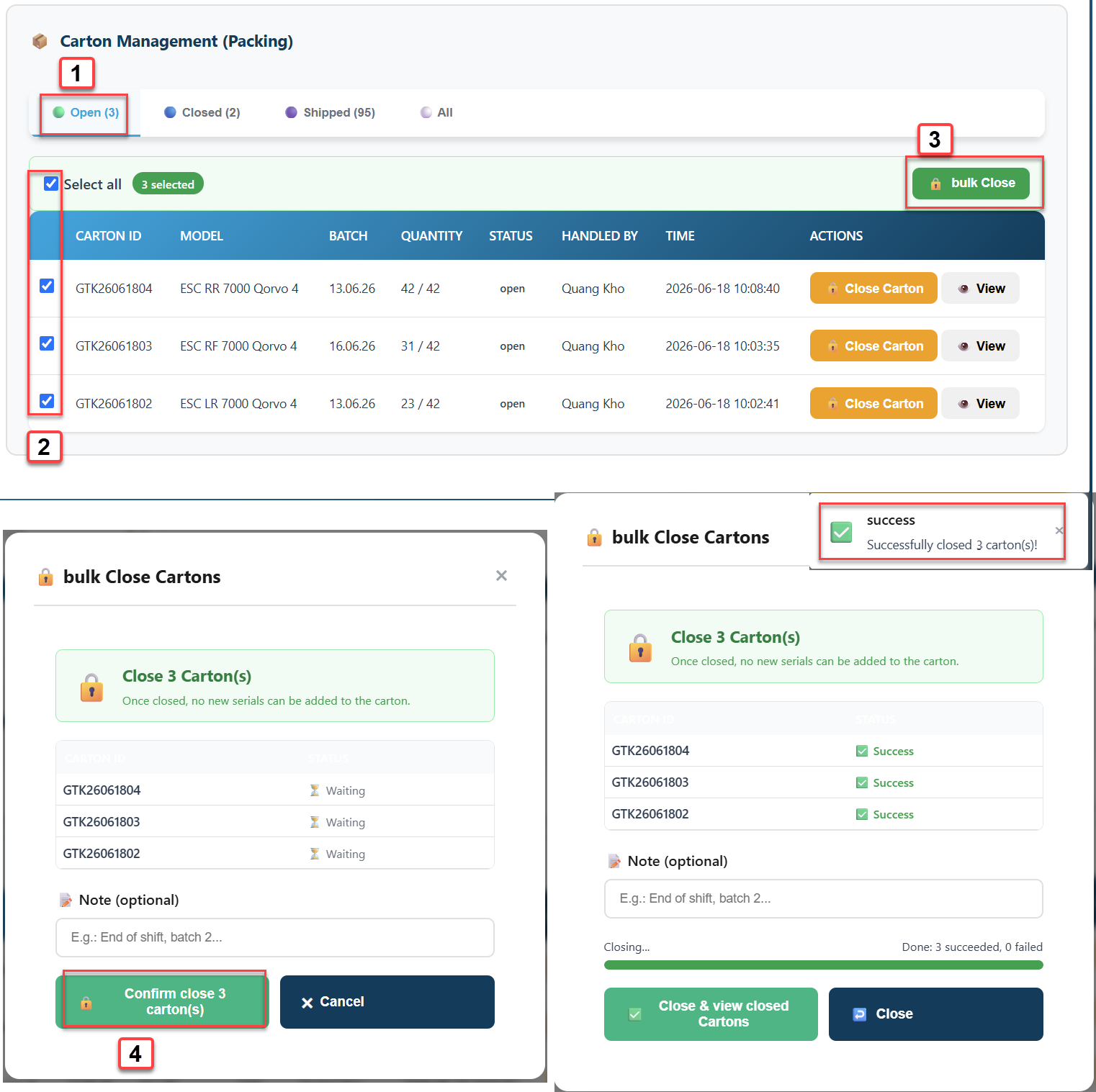
- Go to the Open tab.
- Check the checkboxes next to the cartons to close, or use Select All.
- Click the ? Bulk Close button that appears in the toolbar.
- A confirmation modal shows the list of selected cartons. Add an optional note.
- Click Confirm Close. A progress bar tracks each carton in real time.
- When complete, click Close & View Closed Cartons to switch to the Closed tab.
5. Reopen a BOX (Carton) - (Admin Only)
If a carton was closed by mistake and needs more serials added, an Admin can reopen it.
- Go to the Closed tab.
- Find the carton and click ? Reopen.
- Confirm the action in the dialog.
- The carton returns to Open status and can receive new serials at the Packing station.
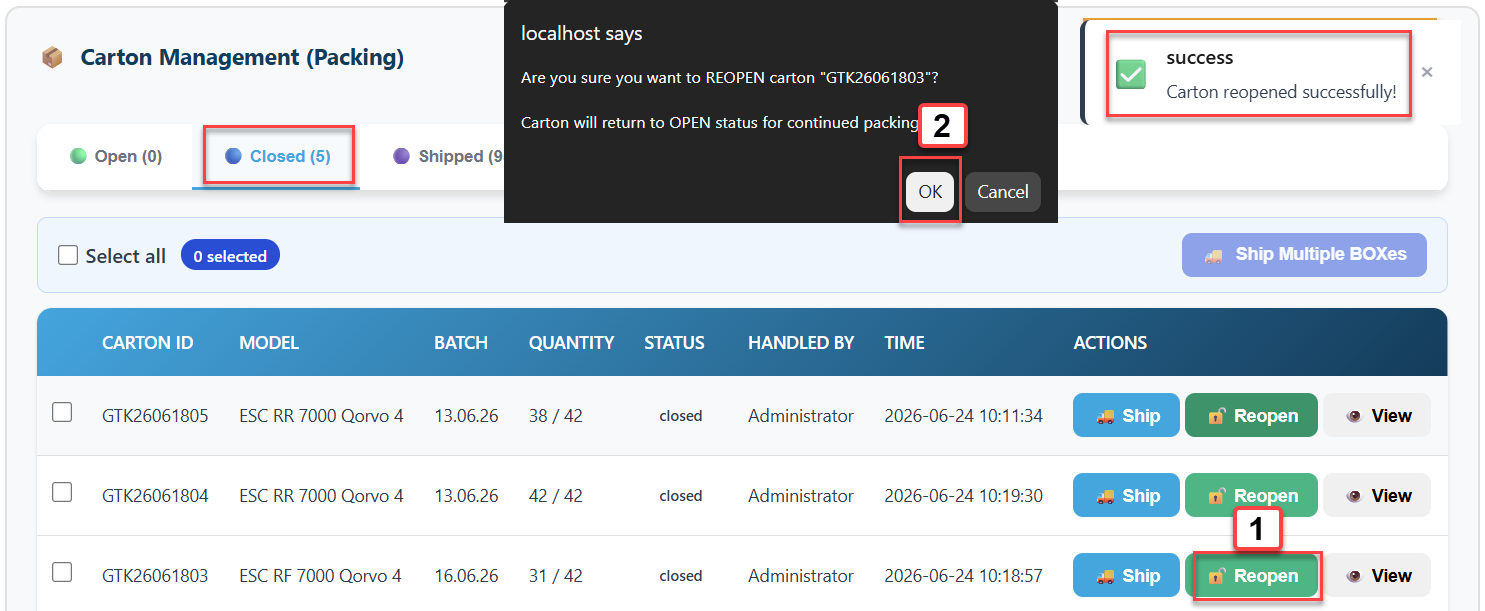
Important: Only Closed cartons can be reopened. Shipped cartons cannot be reopened.
The Reopen button is only visible to users with the Admin role.
6. Ship a BOX (Carton)
Only cartons in Closed status can be shipped.
6.1 Ship a Single BOX (Carton)
- Go to the Closed tab.
- Click ? Ship next to the carton.
- A modal appears with two fields:
- Ship Date/Time — defaults to the current time. Adjust if the actual shipment time differs.
- Note — enter waybill number, driver name, or other shipment details (optional).
- Click Confirm Shipment.
- The carton moves to the Shipped tab.
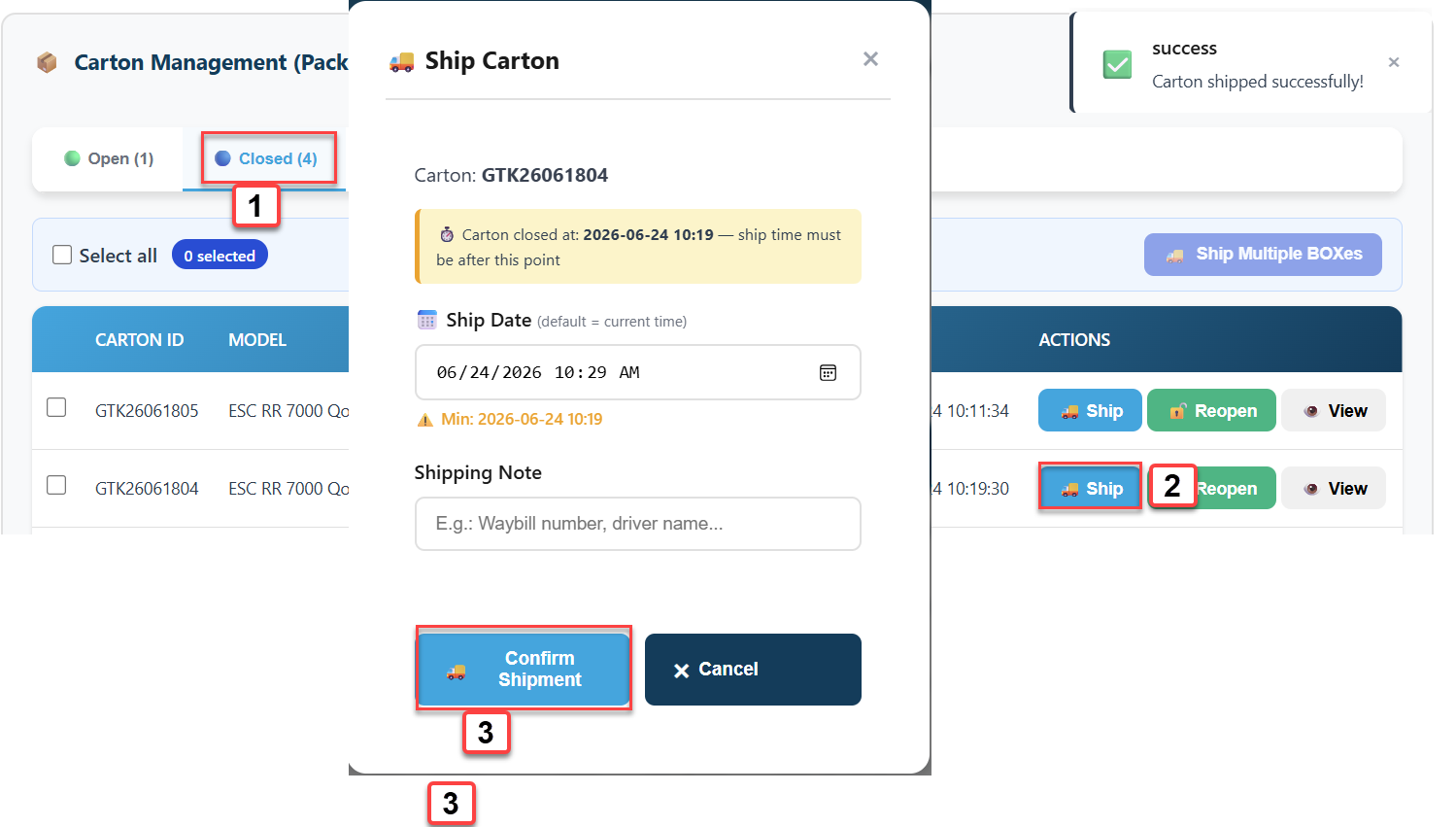
Important: The ship date/time cannot be earlier than the carton's close time. If you enter a time before the close time, the system will block the submission and show a warning.
Once shipped, a carton cannot be modified or reopened.
6.2 Bulk Ship Multiple BOXes (Cartons)
To ship multiple closed cartons in a single operation:
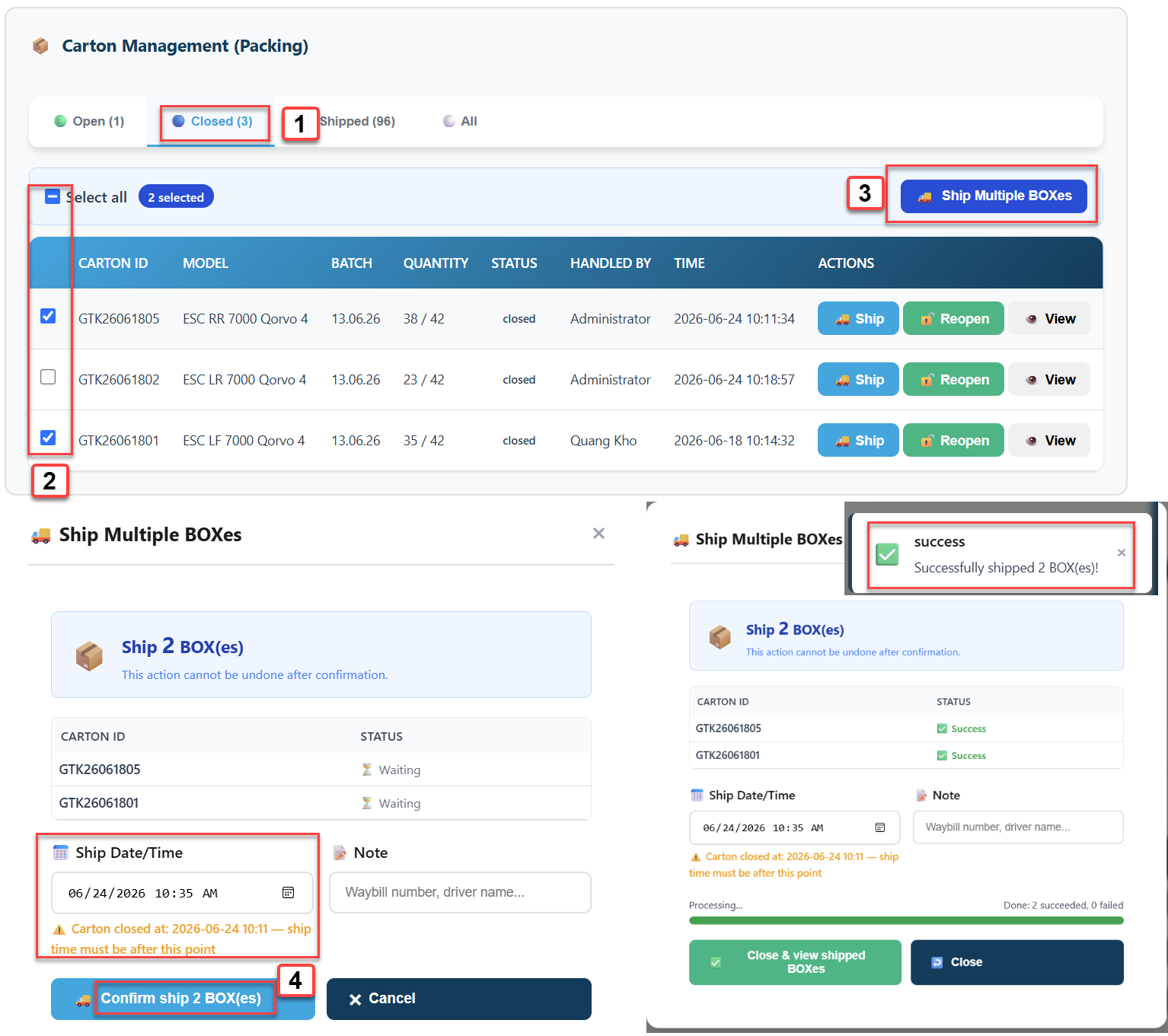
- Go to the Closed tab.
- Check the boxes next to the cartons to ship, or use Select All.
- Click ? Ship Multiple BOXes in the toolbar.
- The Bulk Ship modal shows:
- A table listing all selected cartons with individual status indicators
- A shared Ship Date/Time field applied to all selected cartons
- A shared Note field
- Click Confirm Ship. A progress bar tracks each carton.
- When done, click Close & View Shipped BOXes to switch to the Shipped tab.
Ship Date/Time earlier than Close
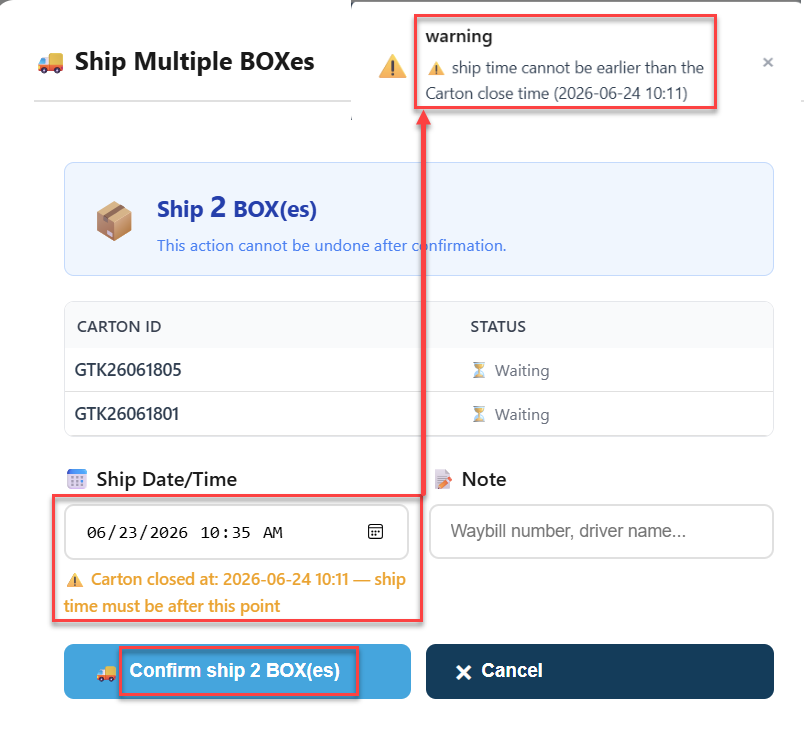
Note: The ship date/time is validated against the latest close time among all selected cartons. If the entered time is earlier than any carton's close time, the system rejects the entire submission.
7. RMA Cartons
An RMA Carton is a dedicated carton for defective products being returned to the supplier. It is created at the Packing station the same way as a normal carton: the operator enters an RMA Carton ID and scans a Return Pending serial into it.
RMA cartons follow the same Open → Closed → Shipped flow, but with the following restrictions enforced by the system:
- Only Return Pending serials (serials already processed via RMA → Return to Supplier) can be scanned into an RMA carton.
- Normal serials cannot be mixed into an RMA carton, and RMA serials cannot be scanned into a normal carton.
- All serials in one RMA carton must share the same failure stage — either all IQC failures or all OQC failures. Mixing is blocked by the system.
- When an RMA carton is shipped, all RMA records inside it are automatically updated to Shipped status.