
- Overview
- 1. Look Up a Defective Serial
- 2. Process RMA — Apply a Corrective Action
- 3. View the RMA List
- 4. Correct a QC Result (Admin / QC Role)
Overview
The RMA (Return Merchandise Authorization) module manages all defective or non-conforming products identified at the IQC and OQC inspection stations. It provides tools to look up defective serials, apply corrective actions, and track each item through repair, rework, return, or disposal.
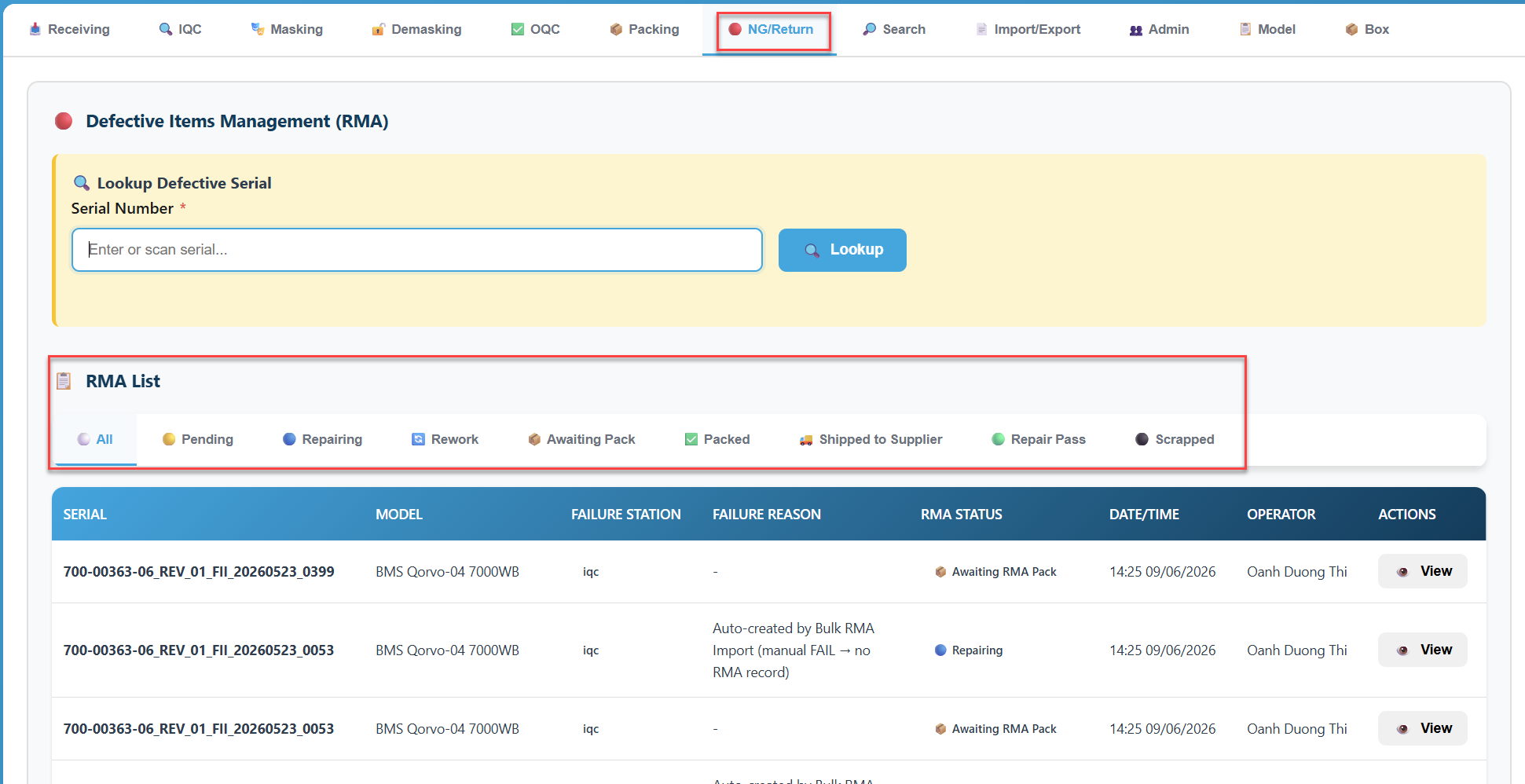
Important: A serial must first fail at IQC or OQC before it appears in the RMA module.
RMA Status Reference
Status | Description | Next Action |
Pending | Serial failed QC, awaiting action | Process RMA |
Repairing | Serial is being repaired internally | Update result |
Repair Pass | Repair complete, returned to IQC/OQC | Continue flow |
Rework | Sent back to OQC for re-inspection | OQC scan |
Return Pending | Awaiting packing into RMA carton | Pack into RMA carton |
RMA Packed | Packed in RMA carton, ready to ship | Ship carton |
Shipped | Returned to supplier | — |
Scrapped | Permanently disposed | — |
1. Look Up a Defective Serial
Use this to check the current state and full history of any defective serial.
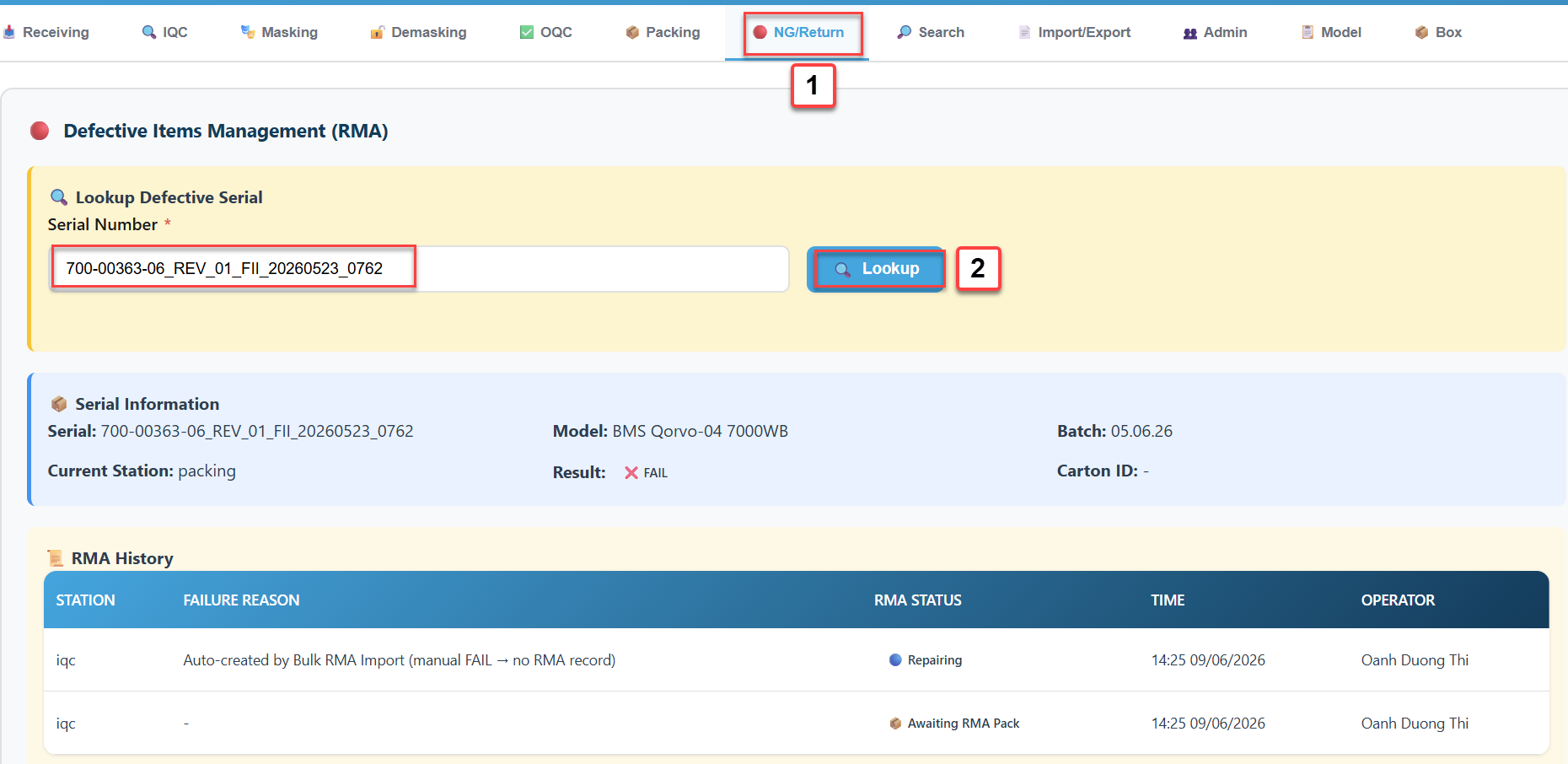
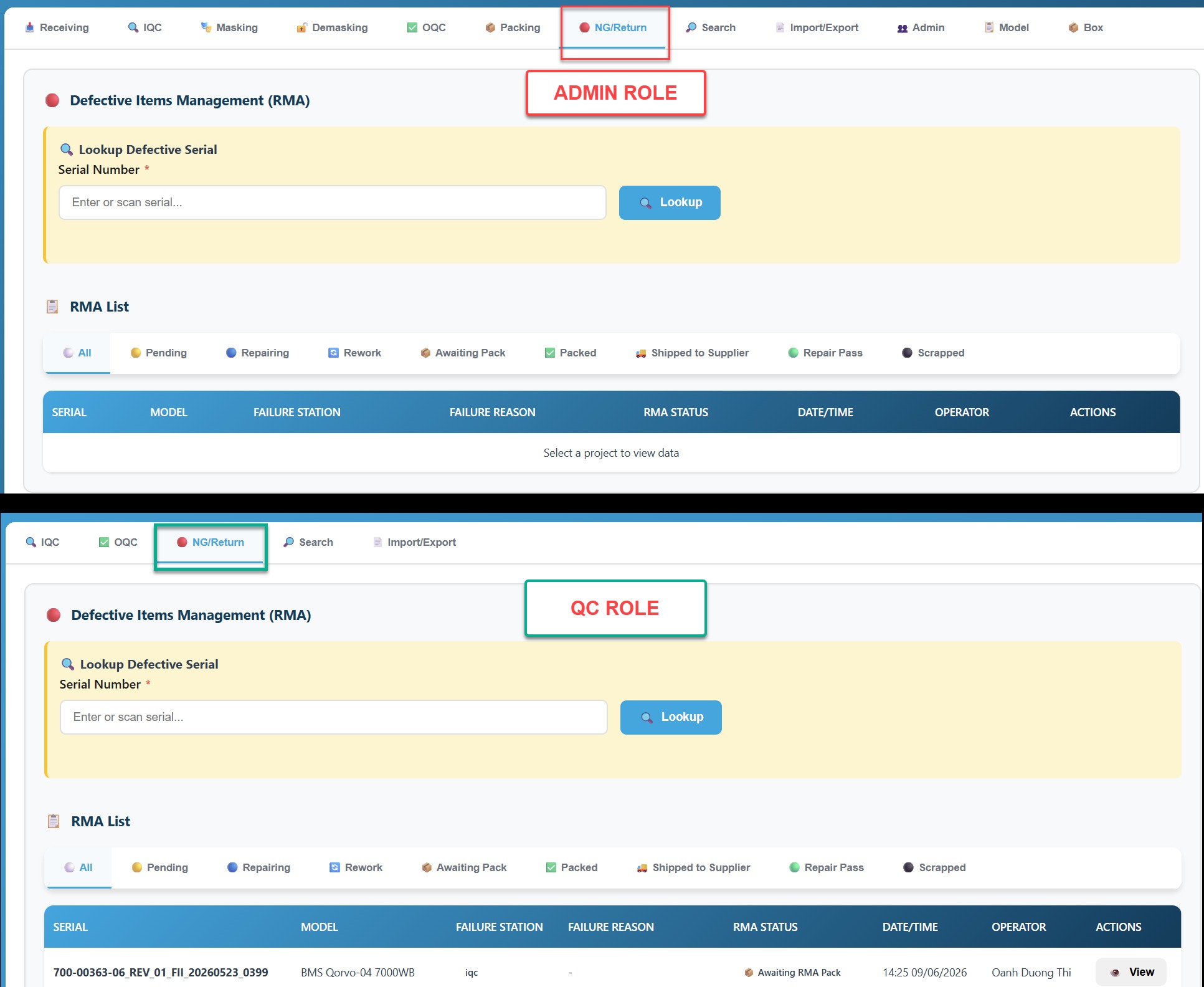
- Navigate to the RMA/NG Return tab.
- In the Search section, enter or scan the serial number.
- Click Lookup.
- The system displays:
- Serial information
- RMA history (all previous actions)
- Station scan history
Note: If the serial is not found, it has not yet been registered in the system (not received at the Receiving station).
2. Process RMA — Apply a Corrective Action
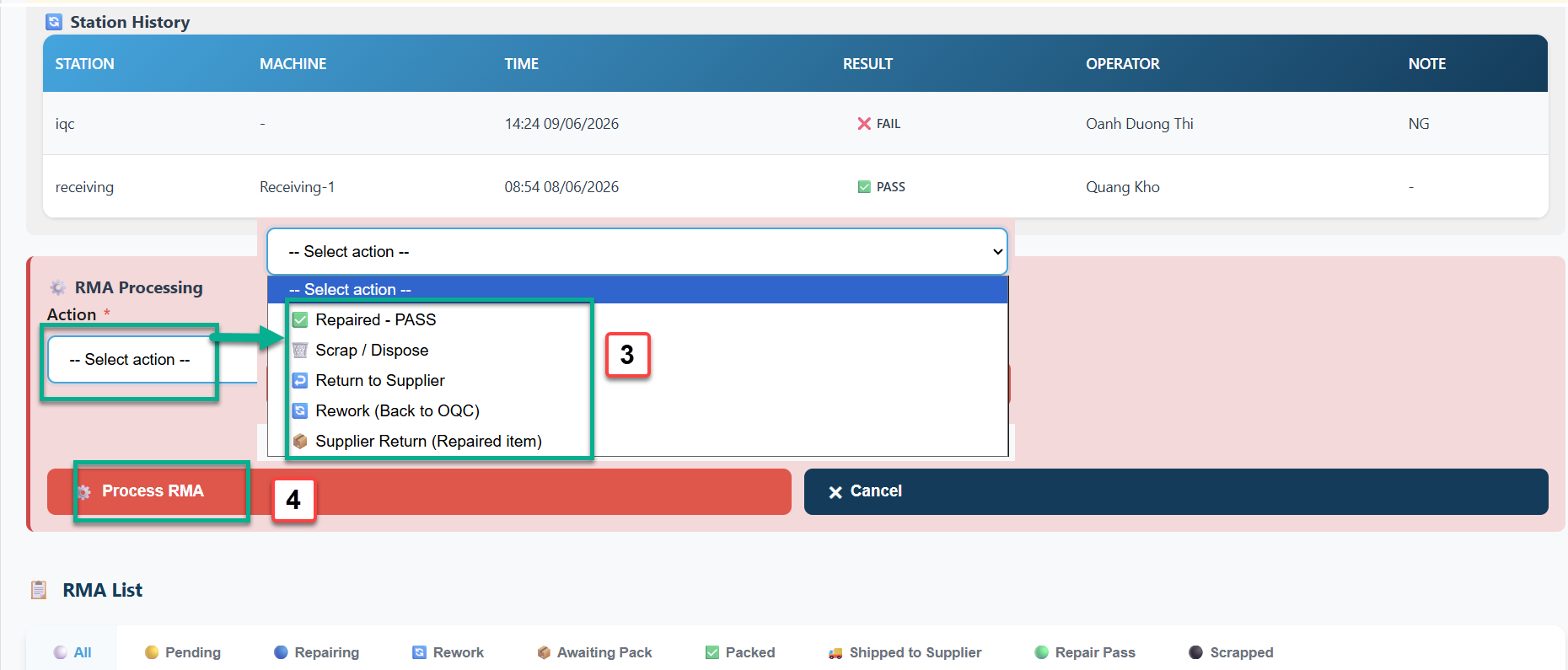
After looking up the serial, select the appropriate action based on inspection results.
 2.1 Repair Pass
Use when: The item has been repaired and passes re-inspection.
- Look up the serial (see Section 1).
- Select Action: Repaired - PASS.
- Enter a note describing the repair (optional but recommended).
- Click Process RMA.
- The serial is returned to IQC (or OQC if the original failure was at OQC) for re-inspection.
2.2 Scrap
Use when: The item is beyond repair or not worth repairing.
- Look up the serial.
- Select Action: Scrap / Dispose.
- Enter a reason for scrapping.
- Click Process RMA.
- The serial is permanently removed from the active flow.
Warning: Scrapping is permanent and cannot be undone. The serial will no longer be visible in active reports.
2.3 Return to Supplier
Use when: The defect is a supplier-side issue and the item must be returned.
- Look up the serial.
- Select Action: Return to Supplier.
- Add a note with the defect description or failure reason.
- Click Process RMA.
- The serial enters Return Pending status. It must then be packed into an RMA Carton (see Section 4).
2.4 Rework
Use when: The item needs additional work before re-inspection (e.g., cosmetic fix, reassembly).
- Look up the serial.
- Select Action: Rework (Back to OQC).
- Enter a rework note.
- Click Process RMA.
- The serial is sent back to OQC for re-inspection. If OQC passes, it proceeds to Packing normally.
2.5 Supplier Return (Received Back)
Use when: The supplier has repaired the item and sent it back.
- Look up the serial.
- Select Action: Supplier Return (Repaired item).
- Enter a note confirming receipt.
- Click Process RMA.
- The serial re-enters the IQC flow for a full re-inspection from the beginning.
Note: Alternatively, use the Import function (Import/Export tab) with stage 'Supplier Return (RMA)' to receive back multiple serials at once from a CSV file.
3. View the RMA List
The RMA list shows all defective items for the selected project, grouped by status.
- Navigate to the RMA/NG Return tab.
- Use the status tabs to filter: All / Pending / Repairing / Rework / Awaiting Pack / Packed / Shipped to Supplier / Repair Pass / Scrapped.
- Click the View button (eye icon) on any row to open the full serial detail and history.
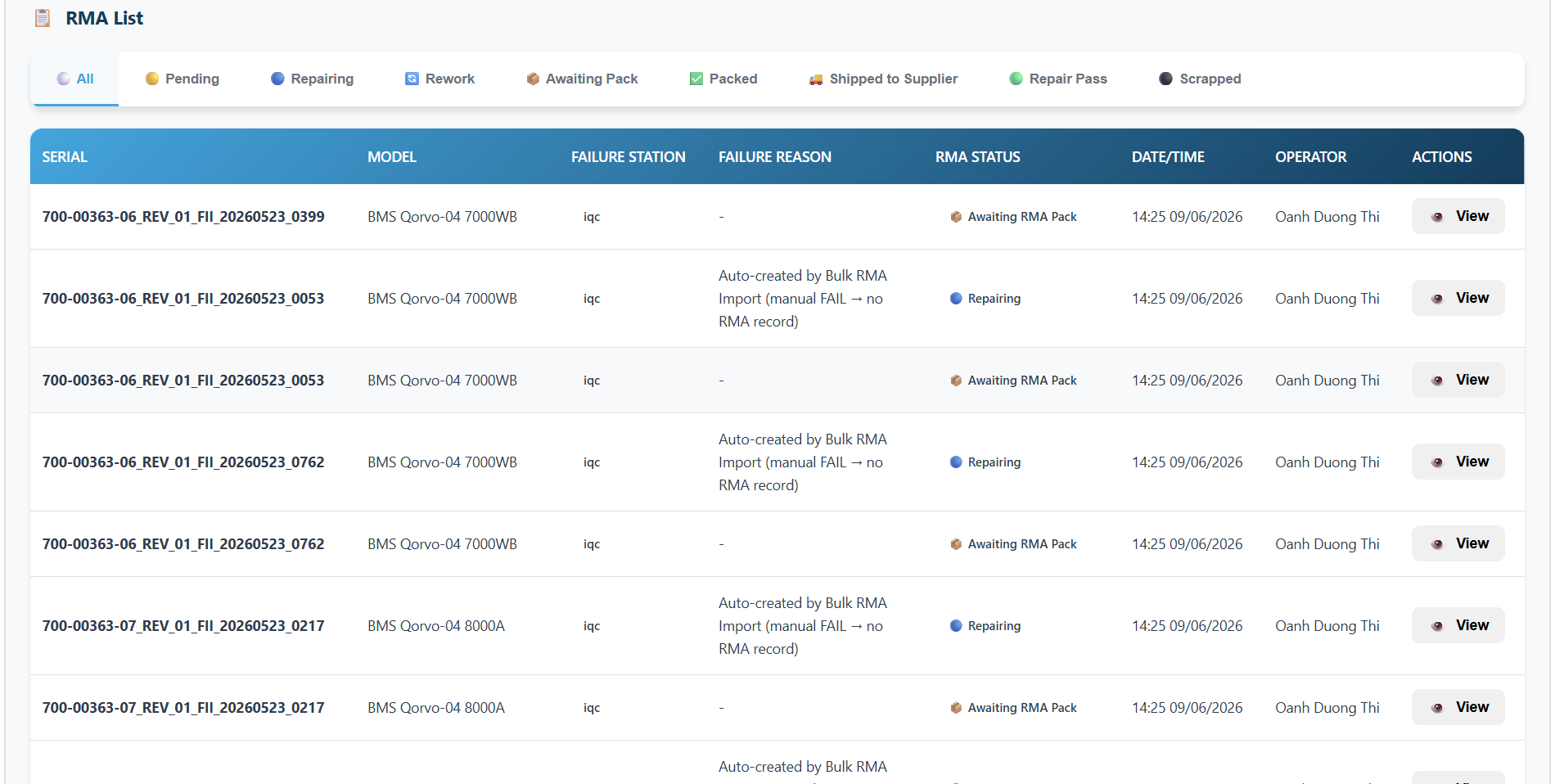
Note: The RMA list is limited to the last 100 records. Use the Export function in the Import/Export tab to retrieve the full dataset.
4. Correct a QC Result (Admin / QC Role)
If a PASS or FAIL result was entered incorrectly at IQC or OQC, it can be corrected through Global Search.
- Use the Search bar at the top to look up the serial.
- In the search result, locate the status badge for IQC or OQC.
- Click the toggle button (e.g., PASS -> FAIL or FAIL -> PASS).
- Confirm the change and enter a reason.
- The system updates the QC result and creates an audit log entry.
Note:
- This function is only available to users with Admin, IQC, or OQC roles.
- The serial must currently be at the IQC or OQC station to allow editing.
- All changes are recorded in the activity log.