- TABLE OF CONTENTS
Overview
The Import/Export module provides two main functions:
- Import: Load production data from CSV files into the system. Use this for bulk entry of serials, QC results, packing assignments, and RMA actions.
- Export: Download production data as CSV files for reporting, analysis, or sharing with other teams.
Important: Always select a project before using Import or Export functions (except Export All Projects).
Note: The Import/Export tab is accessible to all roles, but each station's import is restricted to users who have the corresponding role (e.g., only IQC operators can import IQC data).
IMPORT
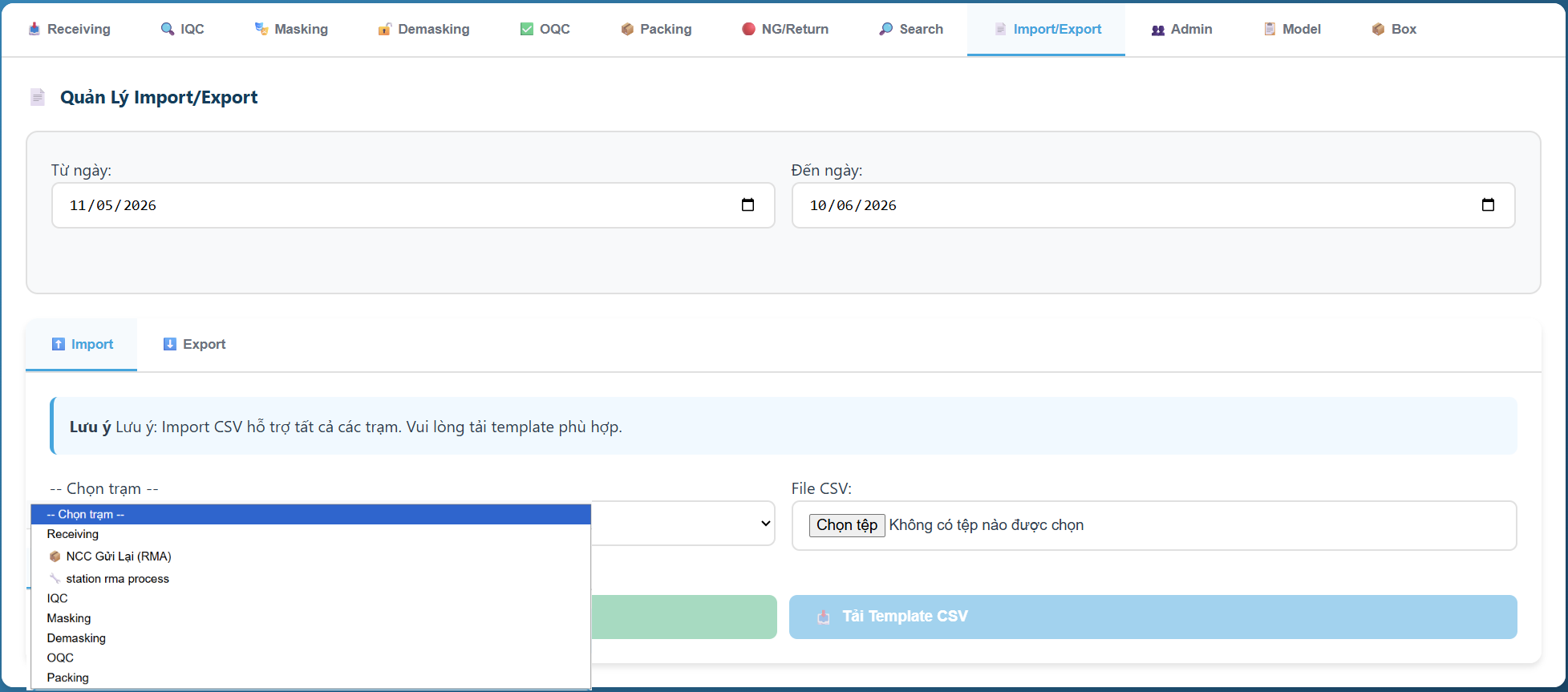
Supported Stations and CSV Format
Each station has its own CSV template with required columns. Download the template for the station you are importing.
Station | CSV Columns | Use Case | Required Role |
Receiving | Serial Number, Model, Batch No, BOX ID, Station | All new serials entering the system | Receiving |
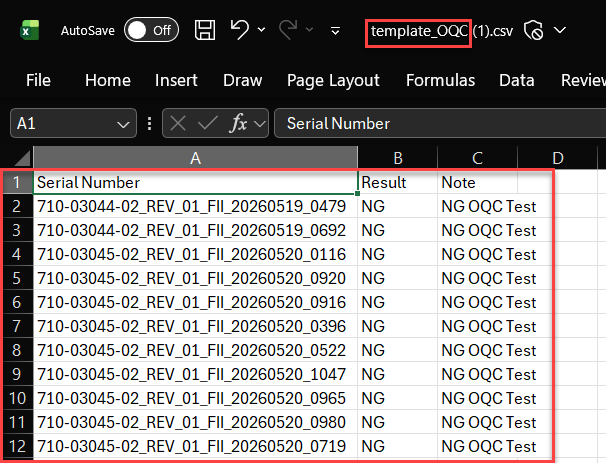
IQC | Serial Number, Result, Note | FAIL results from IQC inspection | IQC |
OQC | Serial Number, Result, Note | FAIL results from OQC inspection | OQC |
Masking | Serial Number, Material ID, Note | Confirm masking completion | Masking |
Demasking | Serial Number, Result, Note | Confirm demasking completion | Demasking |
Packing | Serial Number, Carton ID | Pack serials into cartons | Packing |
rma_process | Serial Number, Action, Note | Bulk apply RMA actions | Admin / IQC / OQC |
Supplier Return (RMA) | Serial Number, Note | Receive back items repaired by supplier | Receiving |
1. Import Data — Step by Step
Applies to all stations. The steps are the same regardless of the station selected.
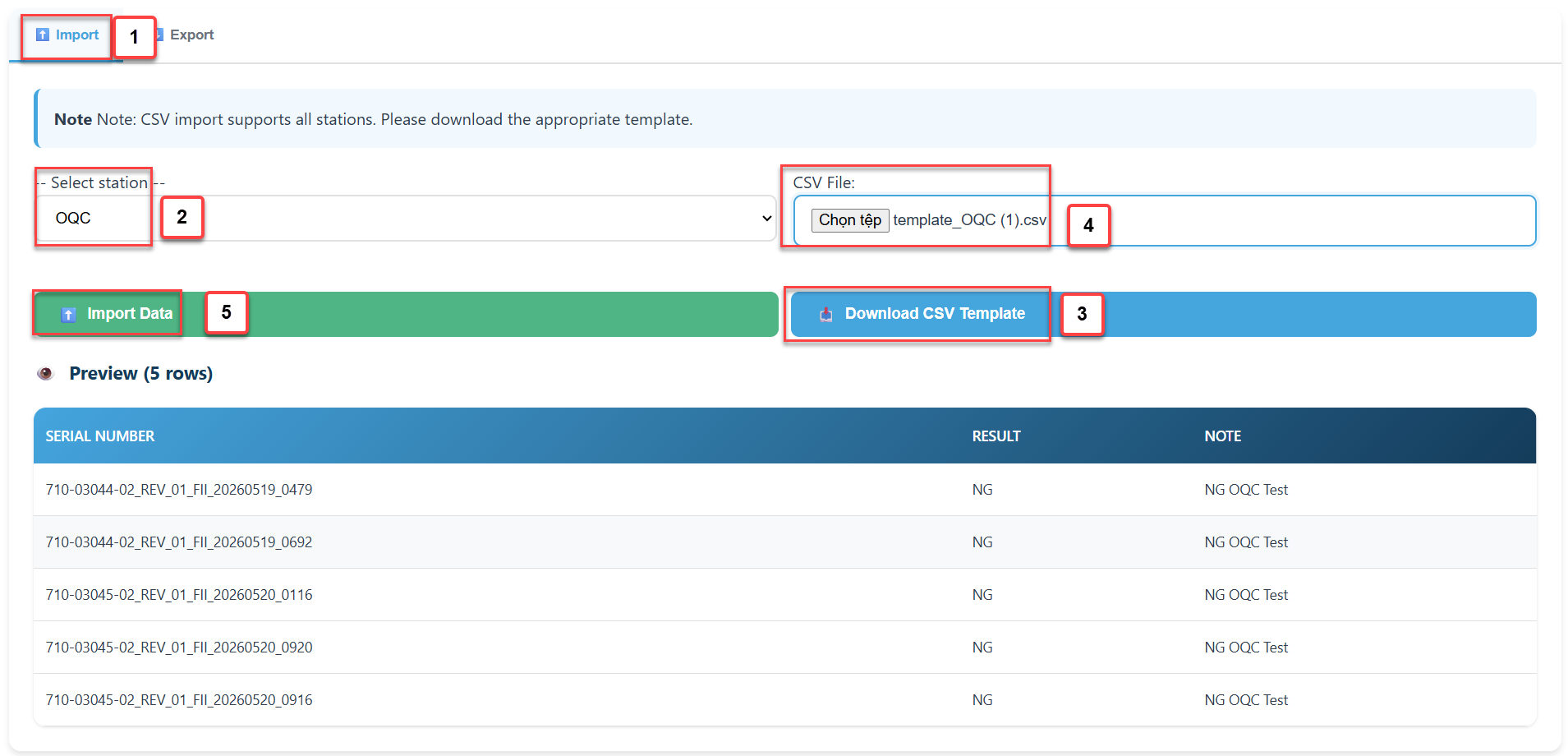
- Navigate to Import/Export tab -> Import sub-tab.
- Select the project from the project dropdown at the top of the screen.
- Select the station from the Station dropdown.
- Click Download CSV Template to get the correct column format for the selected station.
- Fill in your data in the template. Do not change column headers.
- Click Choose File and select your completed CSV file.
- A 5-row preview appears automatically. Verify the data looks correct.
- Click Import Data.
- Review the result summary: success count, failure count, and any error details.
Notes:
- The first row of the CSV is always treated as a header and is skipped.
- Rows beginning with # are treated as comments and are skipped.
- Files must be UTF-8 encoded. The provided templates include a BOM for Excel compatibility.
- The system processes rows sequentially. If a row fails, it is skipped and the next row continues.
2. Common Import Rules
2.1 Receiving Import
- If the serial already exists and has RMA history (returned to supplier), the system re-receives it and moves it back to IQC.
- If the serial already exists but has no RMA history, the import row is rejected as a duplicate.
- If the BOX ID does not exist, it is created automatically.
2.2 IQC / OQC Import
- A serial can only be imported once per station. Duplicate rows for the same serial and station are rejected.
2.3 Packing Import
- The Carton ID column is required. If the carton does not exist, it is created automatically.
- A serial already packed into a different carton will be rejected.
2.4 RMA Process Import (rma_process)
Use this to apply RMA actions to multiple serials at once. Valid actions are:
- REPAIR_PASS — Serial is repaired and passes. Sent back to IQC or OQC.
- SCRAP — Serial is permanently scrapped.
- RETURN — Serial is marked for return to supplier (enters Return Pending status).
- REWORK — Serial is sent to OQC for rework and re-inspection.
Duplicate prevention:
The system uses a two-layer check to prevent importing the same RMA action twice for the same serial.
If a serial has already been processed with the same action, the row is rejected and reported in the error list.
2.5 Supplier Return (RMA) Import
- Use this when the supplier sends back multiple repaired items.
- The serial must have an existing RMA record with a status of Shipped, RMA Packed, or Return Pending.
- The serial is moved back to IQC status for a fresh inspection cycle.
3. Reading Import Error Results
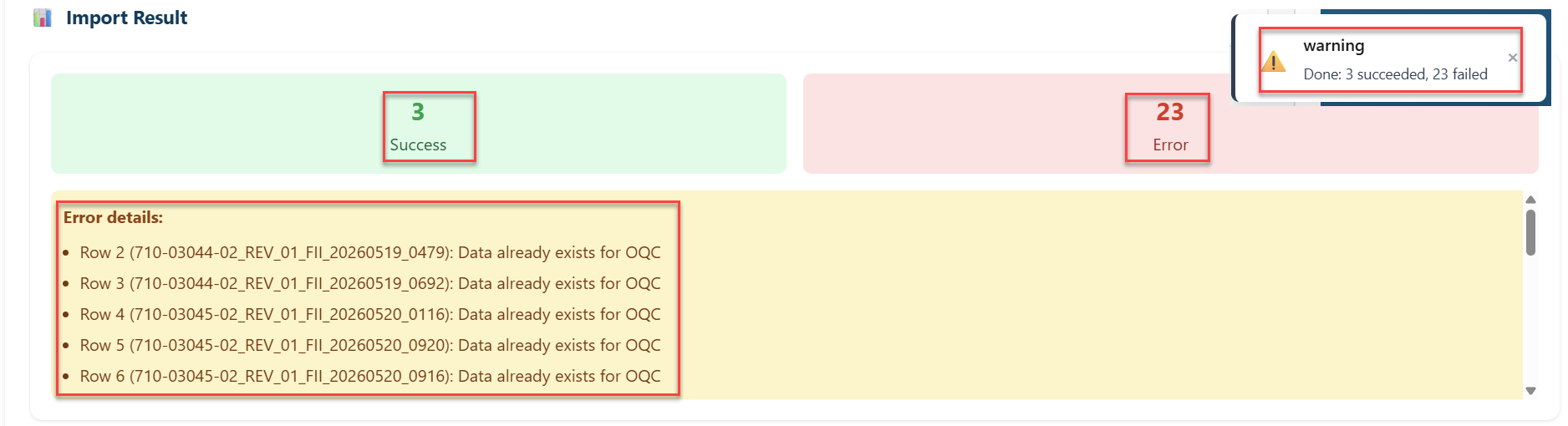
After import, a result panel displays the outcome:
- Green box — Number of rows successfully imported.
- Red box — Number of rows that failed.
- Error list — Each failed row shows: row number, serial number, and the reason for failure.
Error Code | Meaning & Resolution |
serial_empty | The serial number cell is blank. Fill in the serial number. |
serial_not_found | The serial does not exist in the system. Check that it was received first. |
serial_already_exists | The serial was already imported at Receiving. Use rma_return if re-receiving after repair. |
serial_already_packed|CTN001 | The serial is already assigned to a carton. Cannot pack again. |
duplicate_station|IQC | Data for this serial at this station already exists. Import is a duplicate. |
carton_id_required | The Carton ID column is empty. Required for Packing imports. |
rma_no_pending | No RMA record in pending/repairing status found for this serial. |
EXPORT
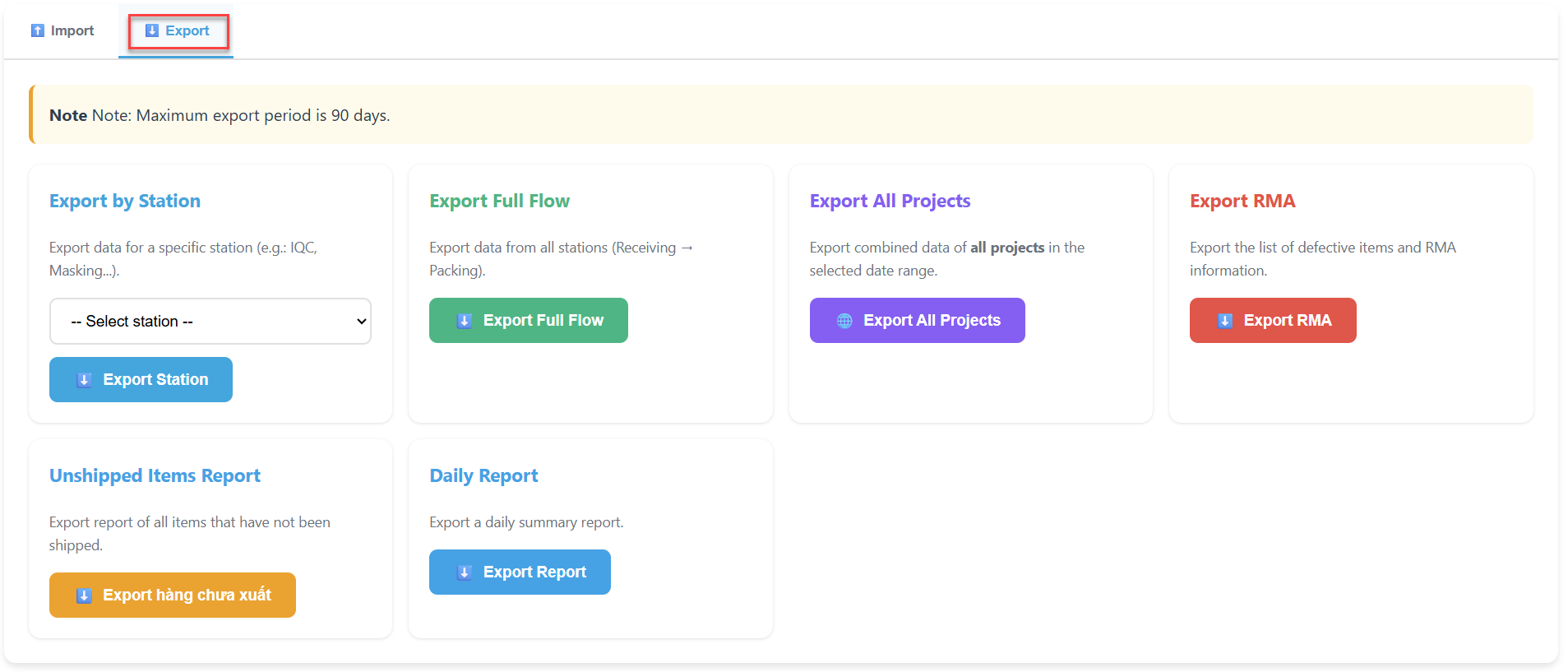
Available Export Types
Export Type | Data Included | Notes | Required Role |
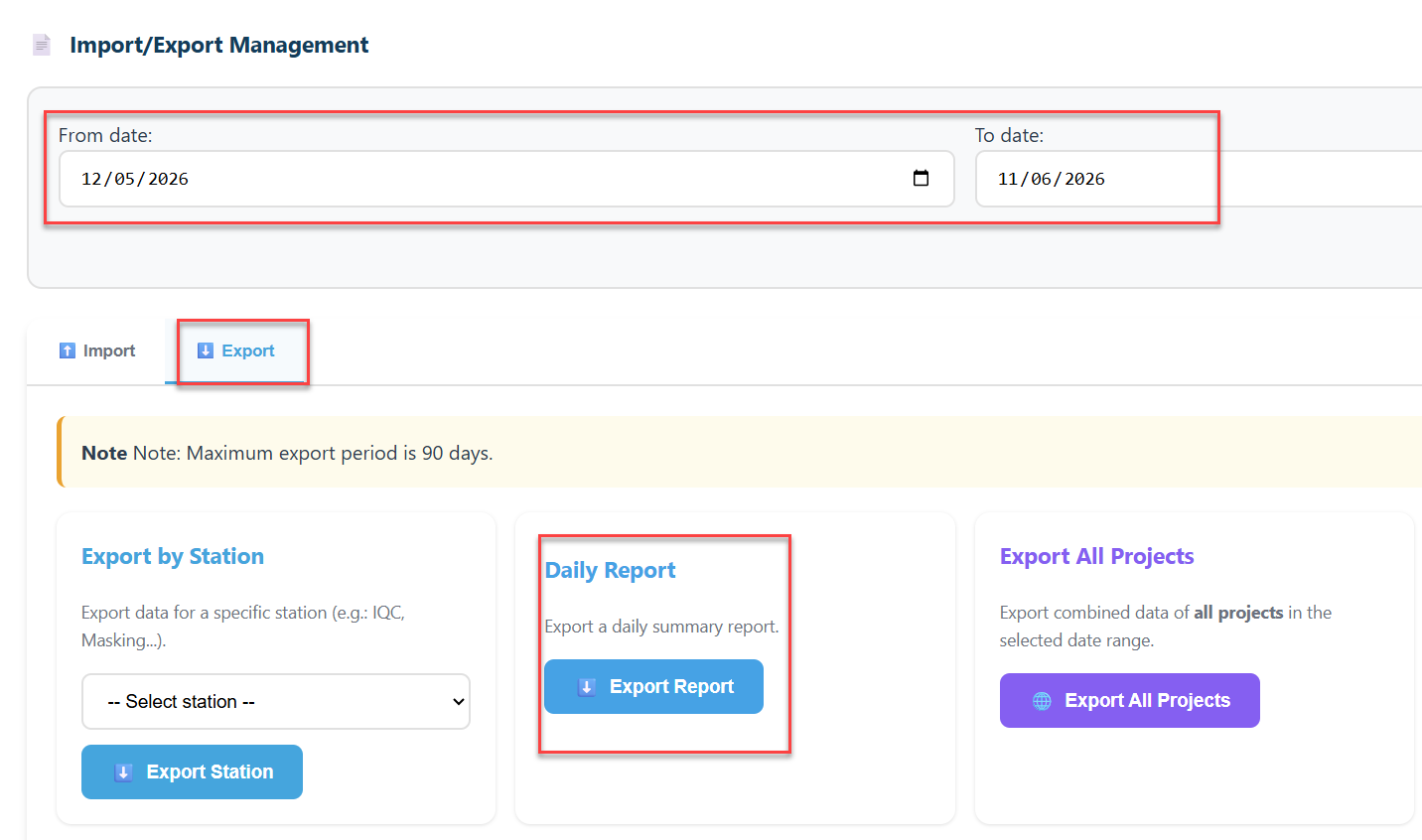
Export by Station | One station only | Requires date range. Max 90 days. | All roles |
Export Full Flow | All stations (Receiving to Packing) | Requires date range. Max 90 days. | All roles |
Export All Projects (ZIP) | All stations, all projects | Creates a ZIP with one CSV per project. | All roles |
Export RMA | Defective items and RMA info | Requires date range. | All roles |
Export Not Shipped | All items not yet shipped | No date range required. | All roles |
Daily Report | Daily summary by station | Requires date range. | All roles |
4. Export by Station
Use this to download all scan records for one specific station within a date range.
- Select the project.
- Set the From date and To date (maximum range: 90 days).
- Navigate to Import/Export tab -> Export sub-tab.
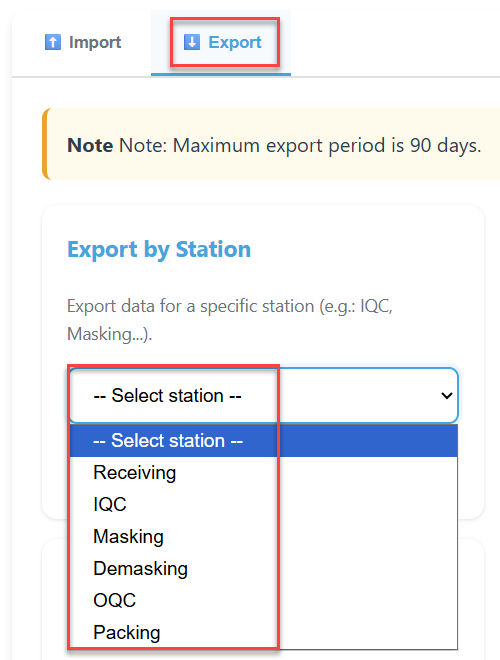
- In the Export by Station section, select the station from the dropdown.
- Click Export Station.
- The file downloads automatically as a CSV (e.g., iqc.csv).
5. Export Full Flow
Use this to get a consolidated view of all serials across all stations for one project.
- Select the project.
- Set the date range (maximum 90 days).
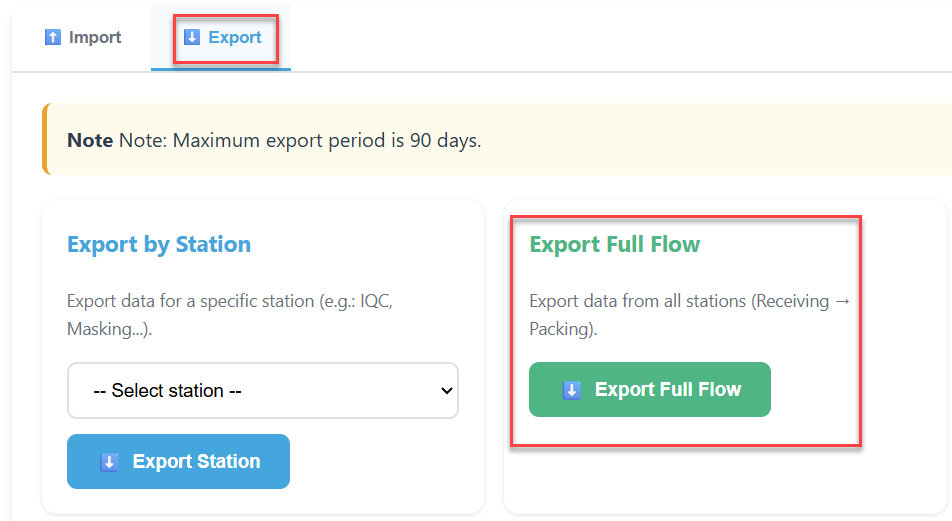
- Click Export Full Flow.
- The file downloads as full_flow.csv and includes: Serial, Model, Status, Result, Receiving info, Packing info, Shipping info.
6. Export All Projects (ZIP)
Use this to export all projects at once, each as a separate CSV file inside a ZIP archive.
- Set the From date and To date.
- No project selection is needed.
- Click Export All Projects.
- A ZIP file downloads containing one CSV per project (named by project code).
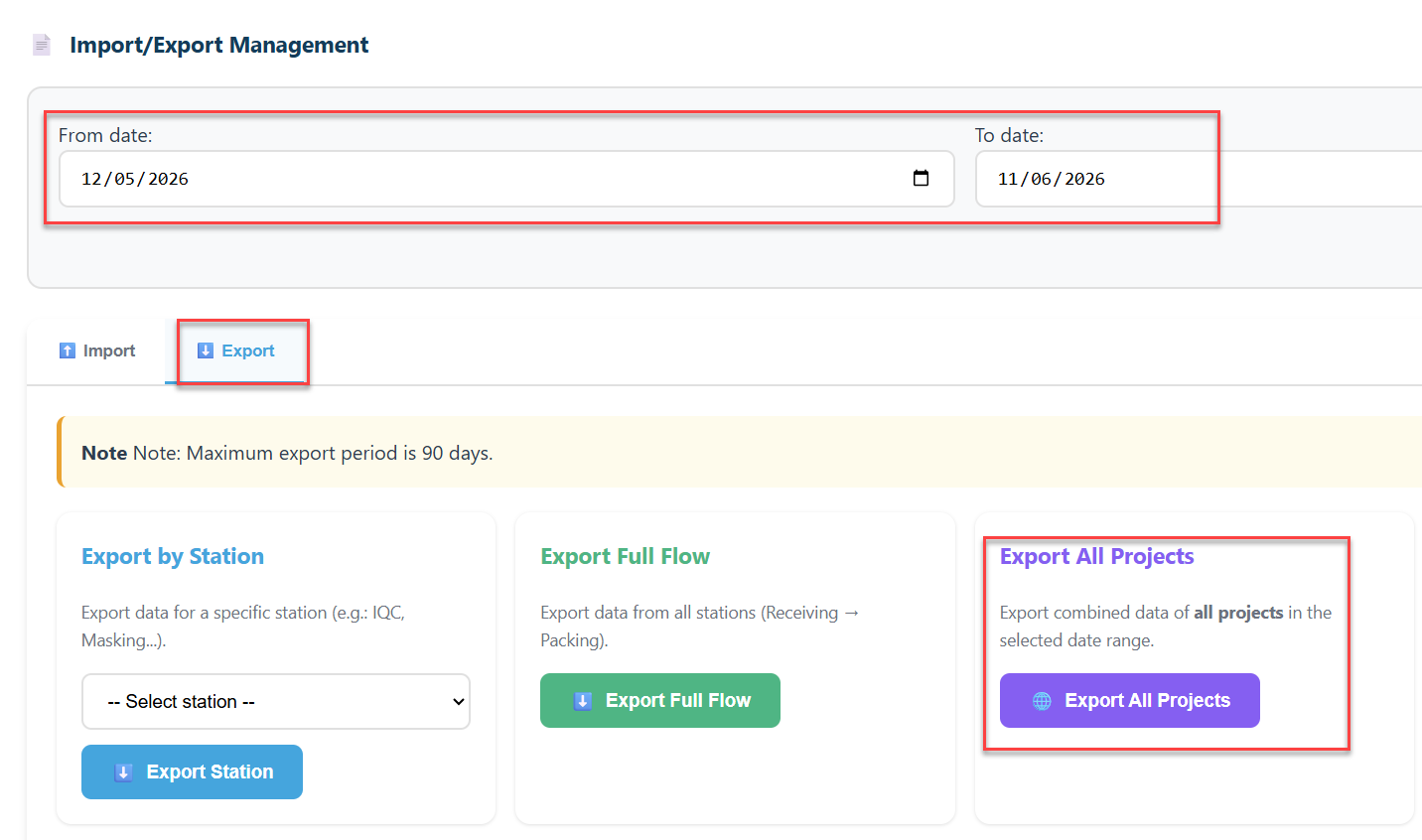
Note: Projects with no data in the selected date range are not included in the ZIP.
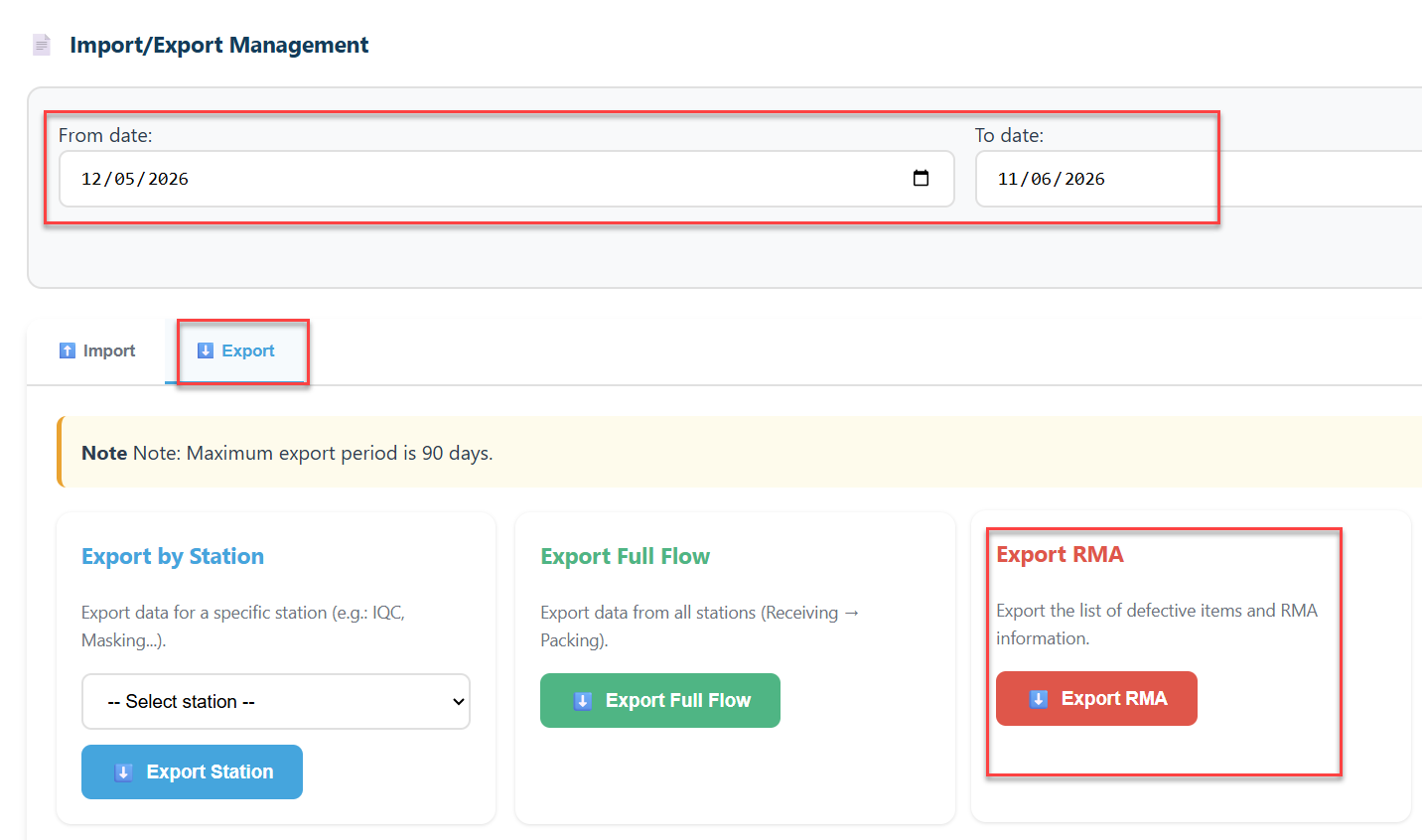
7. Export RMA
- Select the project.
- Set the date range.
- Click Export RMA.
- The file downloads as rma.csv and includes: Serial, Fail Stage, Fail Reason, RMA Status, Date, Operator, Project.
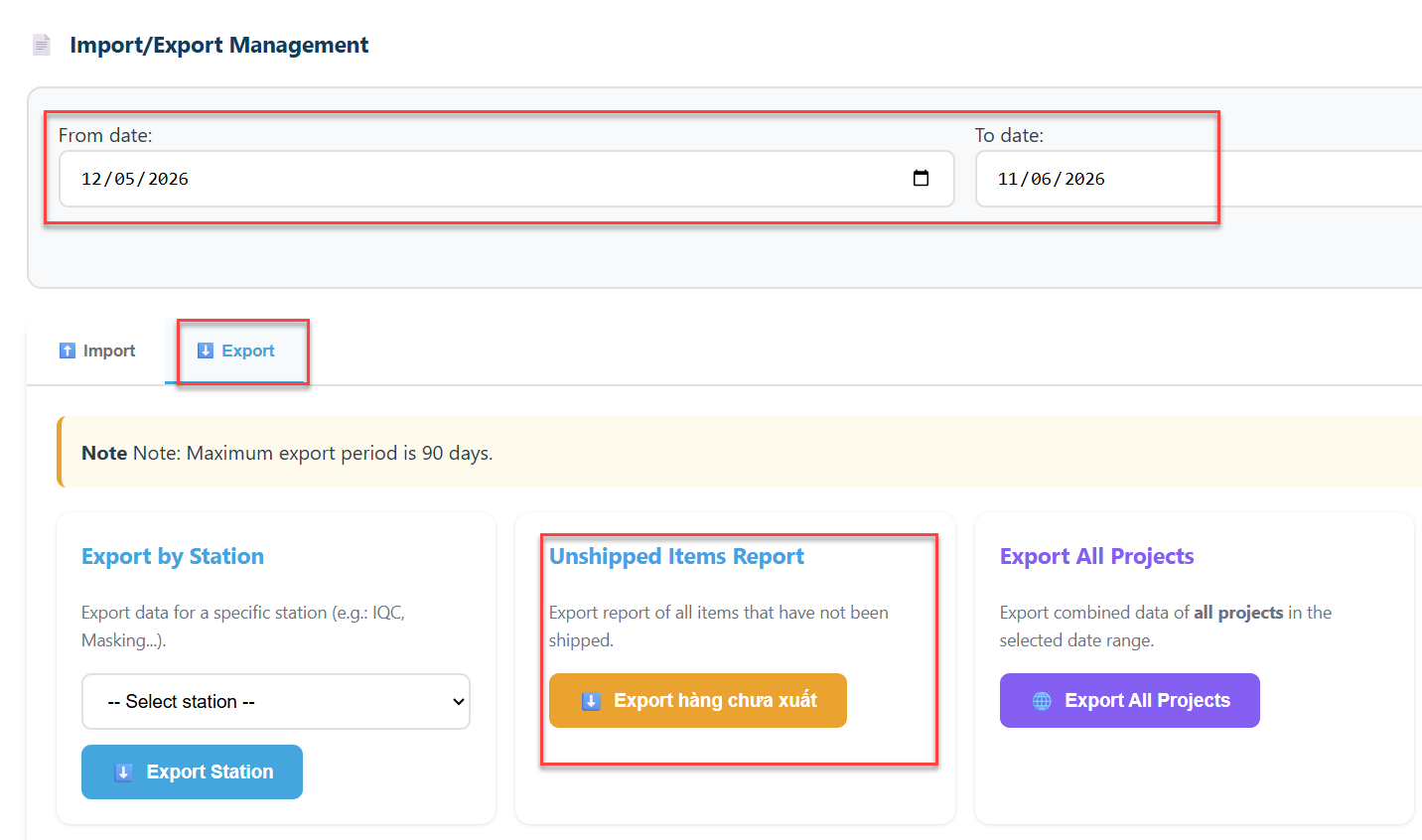
8. Export Not Shipped
Use this to identify all serials that have not yet been shipped out (carton not shipped or not packed).
- Select a specific project, OR check the All projects checkbox to include all projects.
- No date range is required.
- Click Export Not Shipped.
- The file downloads as not_shipped_YYYYMMDD.csv and includes: Serial, Receiving Date, Current Station, Model, Project, Carton, Carton Status.
9. Daily Report
- Select the project.
- Set the date range.
- Click Export Report.
- The file downloads as report.csv and summarizes total scans and pass counts grouped by date.